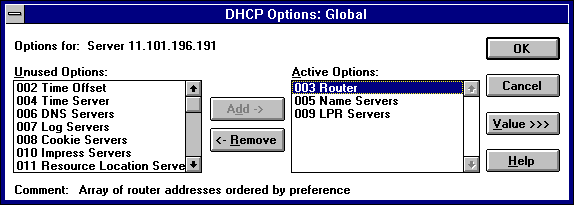
Besides the IP addressing information, other DHCP configuration options to be passed to DHCP clients must be configured for each scope. Options can be defined globally for all scopes on the current server, specifically for a selected scope, or for individual DHCP clients with reserved addresses.
The Microsoft DHCP network packet allocates 312 bytes for DHCP options. That is more than enough space for most option configurations. With some DHCP servers and clients, you can allocate unused space in the DHCP packet to additional options. This feature, called option overlay, is not supported by Microsoft DHCP Server. If you attempt to use more than 312 bytes, some options settings will be lost. In that case, you should delete any unused or low-priority options.
If you are using a third-party DHCP server, be aware that Microsoft DHCP clients do not support option overlays, either. If your option set is larger than 312 bytes, be sure that the settings used by Microsoft DHCP clients are included at the beginning of the option list. Settings beyond the first 312 bytes are not read by Microsoft DHCP clients.
The built-in options are described in "Predefined DHCP Client Configuration Options" later in this chapter.
Note Lease duration and subnet mask are defined for the scope in the Create Scope dialog box. You cannot configure them directly as options.
This list shows both predefined options and any custom options that you added.
For example, if you want to specify DNS servers for computers, select the option named DNS Servers in the Unused Options list and choose the Add button.
If you want to remove an active DHCP option, select its name in the Active Options box, and then choose the Remove button.
For example, to specify the DNS name servers to be used by DHCP clients, select DNS Servers in the Active Options list. Then choose the Edit button and type a list of IP addresses for DNS servers. The list should be in the order of preference.
For details about the Edit Array and Edit Address dialog boxes, see the online Help.
Tip If you are using DHCP to configure WINS clients, be sure to set options #44 WINS Servers and #46 Node Type. These options will allow DHCP-configured computers to find and use the WINS server automatically.